> For the complete documentation index, see [llms.txt](https://vesta-guide.gitbook.io/vesta-guide/llms.txt). Markdown versions of documentation pages are available by appending `.md` to page URLs; this page is available as [Markdown](https://vesta-guide.gitbook.io/vesta-guide/vesta-460.md).
# VESTA-460
VST 897EX
## Outdoor PIR Motion Sensor Camera
The VST-897EX Series is an advanced outdoor passive infrared (PIR) motion sensor camera, designed to enhance security
with high-definition image transmission (up to 1280 720 pixels) upon motion detection. Equipped with Sub-GHz Wi-Fi and an
SF1 backup module, the HALOW model ensures rapid processing for faster visual alarm verification.
\
Built to withstand outdoor conditions, the VST-897EX features night illumination, UV-resistant housing, and IPX5 waterproofing,
making it suitable for areas like backyards, gates, and outdoor corridors. The HDR model adds white balance with HDR support
for clearer images in high-contrast lighting conditions.
\
With a typical detection range of 10 meters when mounted at 2.3 meters above the ground, the device offers pet immunity for
pets up to 25 kilograms.
\
The camera incorporates anti-masking detectors an advanced anti-masking feature, capable of detecting attempts to obscure
the lens using objects or coatings within 20 cm. Infrared technology further enhances anti-masking through over-the-lens
detection.
## Identifying the Parts
1. **Flash LED / Infrared LED**
The Flash LED or Infrared LED delivers sufficient light for image capture under low lighting condition.
2. **IR Sensor**
3. **LED Indicator (Red)**
For system status indication
4. **LED Indicator (Green)** **(for HaLow models only)**
\- Lights up when searching for the HaLow-supported Control Panel
\- Flashes rapidly for data transmission via Wi-Fi
5. **PIR Camera Lens**
6. **Test\&Learn Button**
\- Press the button for 3 seconds to send a learn code, and then release the button when Red LED lights up.
\- Press the button once to enter test mode for 10 minutes.
\- Press the button once to send a learn code to the repeater / router.
7. **Hook Holes**
8. **Battery Compartment**
9. **DIP Switch Block**
There are 8 DIP Switches for setting various functions.
10. **Tamper Switch**
11. **Stabilizing Screw**
12. **Hooks**
13. **Corner Mounting Holes**
14. **Surface Mounting Holes**
## LED Indicator
When enabled, the LED Indicator will light up in the following conditions:
* When the Tamper Switch is triggered, the LED will flash to indicate it is transmitting “**Tamper**” signal.
* When the PIR Camera is in fault conditions (tamper open or low battery condition persists), each time it transmits a detected movement, the LED will flash.
* In Test mode, the LED will light up when a motion is detected.
The LED will not flash if the PIR Camera tamper and battery are normal and it is not under test mode. The LED will flash twice rapidly upon receiving acknowledgement from the Panel.
{% hint style="warning" %}
Note: The LED indicator setting can be adjusted using DIP Switch 2.
{% endhint %}
## Image Capture
When the alarm system is armed, the PIR Camera will capture alarm images in resolution of 1280 720 pixels, 640 480 or 320 240 pixels (programmable from Control Panel) upon movement detection. You can also manually request the PIR Camera to take a picture through the Control Panel. The captured images will be transferred to the Control Panel for visual alarm verification.
{% hint style="warning" %}
Note: If your PIR Camera is installed at a location where the camera’s field of view is a complex environment with intense light or lots of colors, the images captured will be great in file size, possibly leading to truncation when the images are transmitted to the Control Panel.
{% endhint %}
## Supervision Signal
* The PIR Camera automatically transmits supervision signals to the Panel at random intervals of 15 to 18 minutes.
* If the Control Panel does not receive the signal from the device during the preset period, it will indicate that the device is experiencing an out-of-signal problem.
## Warm-up Period
The PIR Camera warms up for 60 seconds after powering on. During the 60-second warm-up period, the PIR Camera will not be activated.
## Test Mode
* The PIR Camera can be put into Test Mode for 10 minutes by pressing the Test Button once.
(The LED Indicator will begin flashing slowly if Disarm Response is set to No Response.)
* In Test Mode, the sleep timer and image capture functions are disabled. The LED indicator will light up when motion is detected.
* Ensure the LED indicator (DIP Switch 2) is ON and the Double Knock function (DIP Switch 7) is OFF before conducting detection range tests in Test Mode.
## Double Knock Function
The PIR Camera features a double knock function. If the function is enabled, the PIR Camera will trigger an alarm only if two movements are detected within 10 seconds. When disabled, the PIR Camera will trigger an alarm when a movement is detected.
## Tamper Protection
The PIR Camera is protected by an internal tamper switch which is compressed when the PIR Camera is hooked onto the mounting bracket. When the PIR Camera is removed from the mounting bracket, the tamper switch will be activated and the PIR Camera will send a tamper open signal to the control panel to report this condition.
## Sleep Timer
* The PIR Camera has a “**sleep time**” of approximately one minute to conserve power. After transmitting for a detected movement, it will not transmit again for 1 minute.
* Continuous movement in front of the PIR Camera will therefore not exhaust the battery.
## DIP Switch Position Table
The table below outlines the function of each Dip switch. Each switch has two positions: **ON** (upper position) and **OFF**
(lower position).
* After changing Dip Switch settings, re-power on the PIR Camera to activate the changes.
* Adjust the DIP Switches according to the installation location of the PIR Camera for optimal performance. Incorrect settings may hinder performance and cause false alarms or failure to detect movement.
## Remote Configuration
* The PIR motion sensor camera supports remote setting of double knock function.
* When the PIR camera is powered on, its double knock function is determined by DIP Switch 7 setting. Users can either adjust DIP Switch setting or remotely program the function from the Control Panel webpage or Home Portal Server. Remote setting will overwrite DIP Switch setting.
### Control Panel Webpage
1. On the Panel local webpage, go to the Edit Device page; input the IR configuration value in the Sensor Setting section. Click **OK** to confirm.
Please refer to the table below for configuration details. For example, to enable double knock function, enter 80.
IR Configuration
Double Knock
00
No
80
Yes
2. Press the Test button on the PIR camera to send a signal to the panel; the new setting will be applied immediately. If the button is not pressed, new setting will be applied upon next signal transmission, e.g., supervision signal or IR trigger signal.
### Home Portal Server
1. On Home Portal Server, go to the Device setting page, click the VST-897EX device row and select “Remote Configuration.”
2. Select to enable or disable the Double Knock function from the drop-down menu, then click **Submit**.
3. Press the Test button on the PIR camera to send a signal to the panel, the new setting will be applied immediately. If the button is not pressed, new setting will be applied upon next signal transmission, e.g., supervision signal or IR trigger signal.
## Anti-Masking
* The PIR Camera has two masking sensors that can detect any masking (blocking) attempt by an intruder.
* When a masking event is detected and last for 3 minutes, the PIR Camera will send a masking alarm signal to the Control Panel to report the condition.
* After masking/blocking has been removed for 3 minutes, the PIR Camera will send a restore signal to the Panel.
## ***Remote Update***
* The VST-897EX Series PIR Camera supports remote firmware updates from the Control Panel where applicable.
## Battery
* The PIR Camera uses four AA L91 lithium batteries as its power source.
* The PIR Camera reports its battery level to the Control Panel every 24 hours or whenever the level changes.
* The PIR Camera features low battery voltage detection. When low battery is detected, a low battery signal will be sent to the Control Panel along with regular signal transmissions for the Panel to display the status accordingly.
* **To change the batteries:**
**Step 1** Detach the PIR Camera from mounting bracket.
**Step 2** Loosen the fixing screw and open the battery compartment cover.
**Step 3** Remove the old batteries and press the test button twice to fully discharge the residual power.
**Step 4** Insert four new AA L91 lithium batteries with correct polarity.
**Step 5** Press the Test Button once. A battery normal signal will be sent to the Control Panel.
**Step 6** Re-secure the battery compartment cover.
**Step 7** Re-attach the PIR Camera to the mounting bracket.
## Getting Started – Learning the PIR Camera into the Control Panel
* Detach the PIR Camera from the mounting bracket and open the battery compartment cover.
* Insert four AA L91 lithium batteries into the battery compartment, ensuring correct polarity.
* Put the Control Panel into learning mode; refer to Control Panel manual for details.
* Hold the Test Button for 3 seconds until the Red LED lights up to send a learn code. The LED will be on for 30 seconds, indicating the PIR Camera is in learning mode.
* To learn into a battery-operated panel, after pressing and holding the Test Button for 3 seconds, press the Test Button again for one second.
* When learning into a repeater/router, press the Test button once (instead of holding it for 3 seconds) to send a learn signal.
* If the Control Panel receives the signal from the PIR Camera, it will display the information accordingly. Within 30 seconds when the LED is on, select the PIR Camera on the Control Panel Webpage and click “**add**” to include it into the Panel.
* When the PIR Camera receives acknowledgement from the Control Panel, its LED will flash 6 times to indicate successful learning.
{% hint style="info" %}
Note:
* If the PIR Camera does not receive acknowledgement from the Control Panel within this 30-second period, the LED will turn off. Hold the Button for 3 seconds again to resend a learn signal.
* If the PIR Camera already exists in a Control Panel system, remove it from the Control Panel first before learning it into a different Control Panel.
{% endhint %}
#### **Walk Test**
* After the PIR Camera is learnt-in, put the Control Panel into Walk Test mode. Hold the PIR Camera in the desired location, and press the Test Button to confirm this location is within the signal range of the Control Panel.
{% hint style="info" %}
Note:
* **Walk Test** should be conducted to confirm proper operation and coverage of the PIR Camera.
* When learning the PIR Camera into a repeater/router, please press the Test button once (instead of pressing and holding it for 3 seconds) to send a learn signal.
{% endhint %}
#### **Wi-Fi Walk Test *****(For Wi-Fi HaLow models)***
* When the Control Panel is put to Walk Test mode, pressing the Test Button also initiate a Wi-Fi Walk Test. The PIR Camera’s Green LED will light up as it begins searching for a HaLow-supported Control Panel.
 If a connection is established, the Green LED will flash rapidly during data transmission via Wi-Fi, and the message “HALOW OK” will appear on the Panel’s webpage upon completing data transmission.
 If the connection fails, the Green LED will turn off.

* Proceed to installation once proper communication with the Panel is confirmed at the chosen location.
## Edit PIR Camera Operation Area
1. Use the panel Edit Device function to change PIR Camera area setting.
2. For devices communicating directly with the Panel, the setting is completed after clicking OK.
For devices using a Repeater, press the Test Button to transmit a learn code after changing the area setting.
## Installation
#### Mounting Bracket
* The PIR Camera can be mounted either on a flat surface or in a corner with the fixing screws, wall plugs, and the mounting bracket provided.
* The mounting bracket has two surface-mounting holes and four corner-mounting holes, accommodating various mounting needs.
* To mount the PIR Camera with the mounting bracket:
1. Use the mounting bracket as a template and drill 2 (for mounting on a flat surface) or 4 (for mounting in the corner) screw holes into the wall.
2. Push in the plugs and screw the mounting bracket onto the wall.
3. Hook the PIR Camera onto the mounting bracket, then **push it downward**.
{% hint style="info" %}
Note: Ensure the tamper switch is fully depressed when hooking the PIR Camera onto the bracket. **Surface Mounting**
{% endhint %}
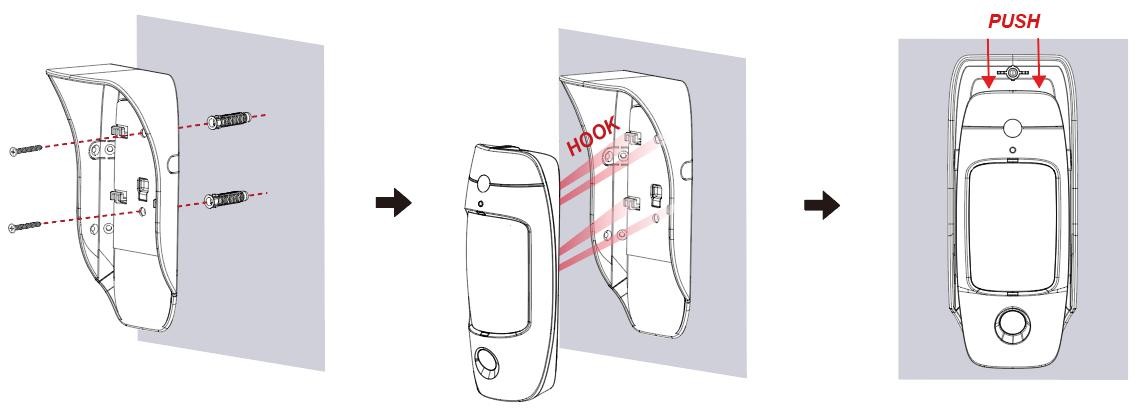
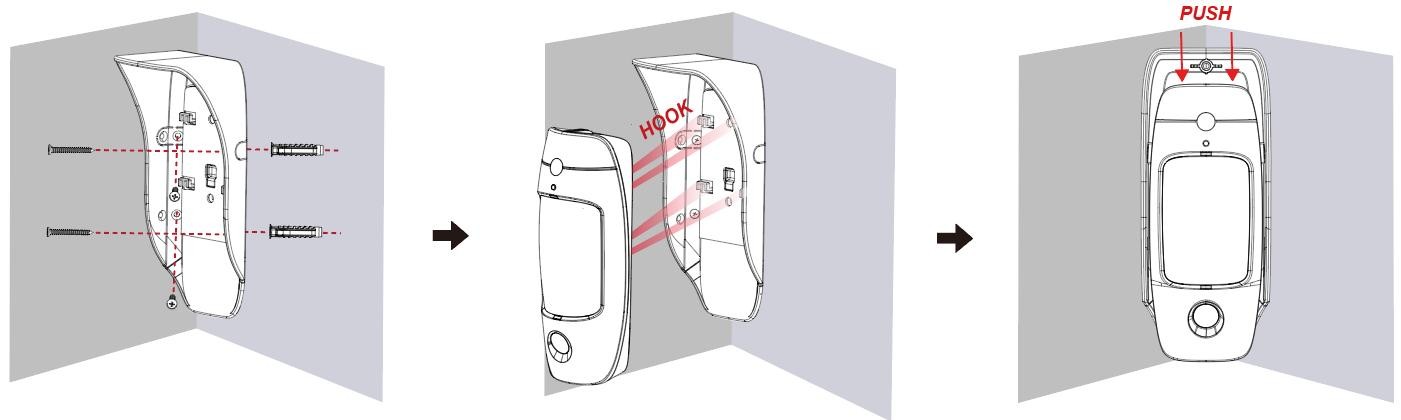
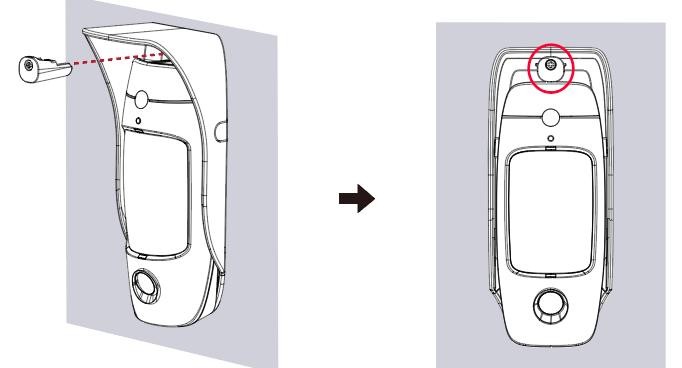
4. Apply the Stabilizing Screw to the top of the PIR Camera. The Stabilizing Screw has a foolproof mechanism for correct installation.
#### Rotating Holder
{% content-ref url="/pages/UB1jvgts32XtxxzN4JIC" %}
[VESTA-482](/vesta-guide/vesta-482.md)
{% endcontent-ref %}
* An optional rotating holder is available, allowing the PIR Camera to be rotated horizontally and vertically.
* The holder provides 7 angle scales for adjustment. For horizontal adjustment, the center calibration mark indicates 0 degrees. The PIR Camera can be rotated up to 15° to the left or right, with each scale representing 5°. ⚫ For vertical adjustment, the PIR Camera can be tilted downward by up to 30°.
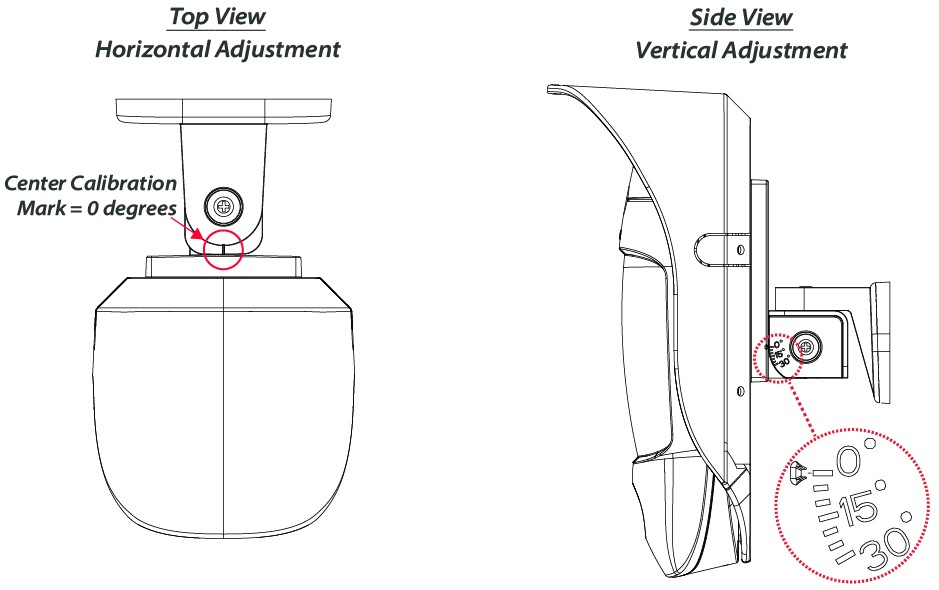
* To adjust the angle, loosen the **horizontal adjustment screw**or the **vertical adjustment screw** as required.
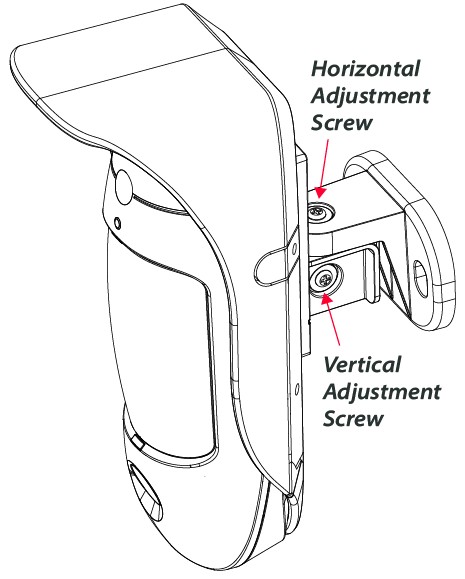
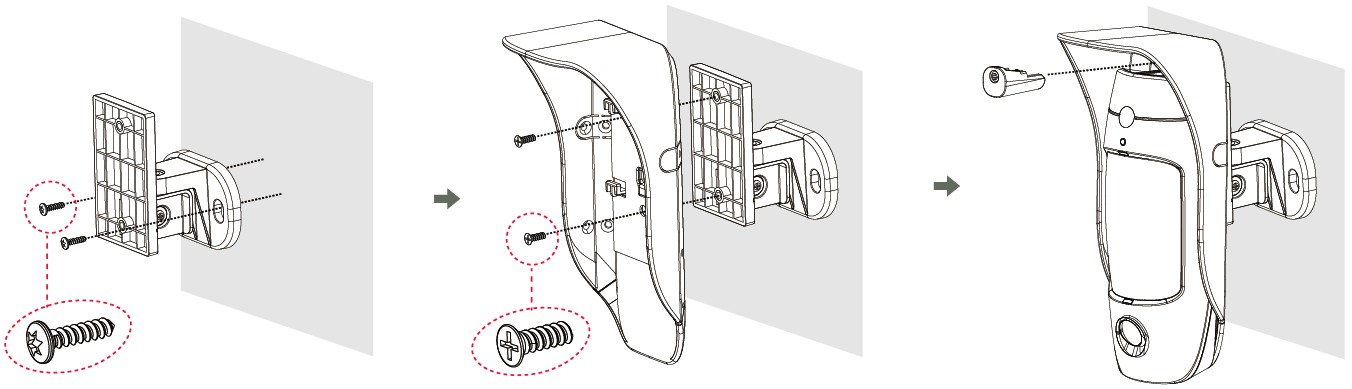
* To mount the Rotating Holder:
1. Use the two screw holes on the holder as a template and drill two holes in the mounting surface.
2. Insert the wall plugs, then secure the holder onto the wall plugs using provided the **Torx screws**.
3. Secure the mounting bracket onto the rotating holder using the provided **flat head screws**.
4. Hook the PIR Camera onto the mounting bracket, then push it downward until it is seated.
5. Fasten the stabilizing screw at the top of the PIR Camera.
6. Adjust the PIR Camera to the desired angle, then tighten the adjustment screw(s) to secure the position.
## Installation Recommendations
**It is recommended to install the PIR Camera in the following locations:**
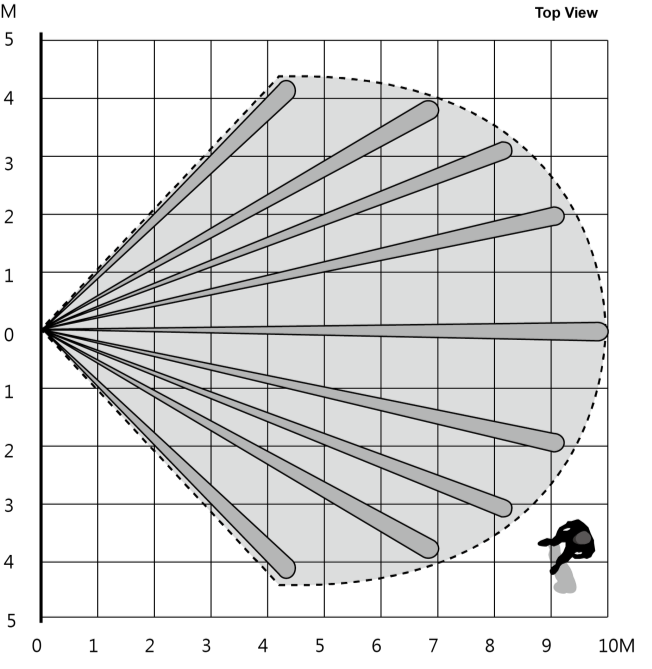
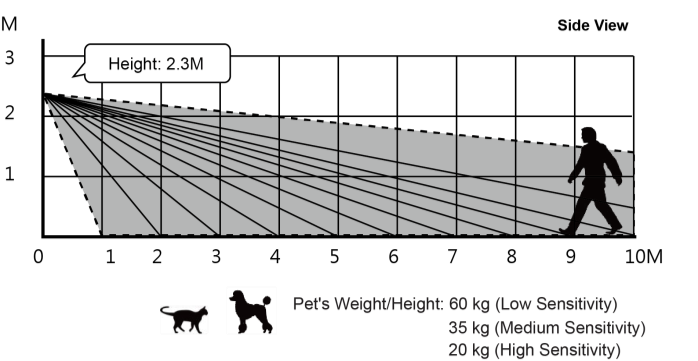
* At a height of 2.3 meters (measured from bottom of the camera) above the ground level for best performance.
* In a corner for the widest view.
* At a position where an intruder would normally move across the PIR Camera’s field of view.
* On a surface or in a corner where animals are inaccessible.
* The PIR Camera has a detection range of 10 meters when mounted at 2.3 meters above the ground.
{% hint style="warning" %}
Note:
* Adjust the mounting height based on the tallest pet. Taller dogs require higher installation.
* When mounted at 2.3 m, the PIR Camera has a 1m blind spot directly beneath it. Mounting higher increases the blind spot; mounting lower reduces it.
* Always conduct a detection range test when changing the mounting height.
{% endhint %}
**VST-897EX Detection Range**
***
**Limitations:**
* Do not expose the PIR Camera completely to direct sunlight.
* Avoid large obstacles in the detection area.
* Do not face heat sources, such as fires and boilers, or install above radiators.
* Never attempt to disassemble or modify the unit.
* The PIR Camera detects differences between the moving object and the background. It does not detect idle objects.
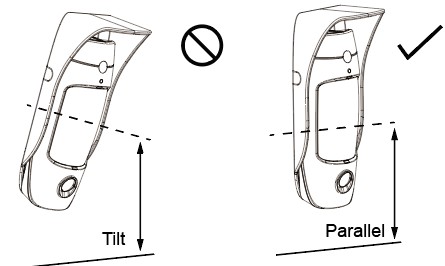
* Please install the PIR Camera straight up. Do not tilt it.
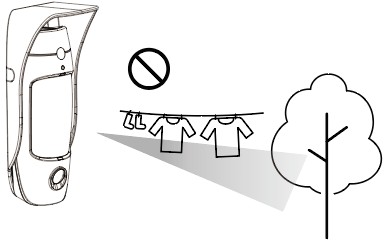
* Avoid installing near objects that move in the wind, such as trees or hanging laundry, as this may block the device’s field of view or cause false alarms.
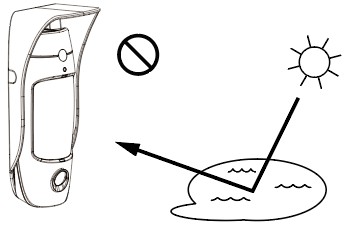
* Clear all light-reflecting surfaces from the detection area, as well as water puddles.
* Avoid facing the path of outdoor unit’s intake or exhaust airflow.


