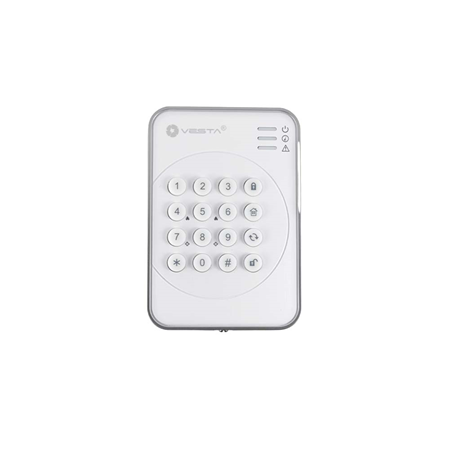
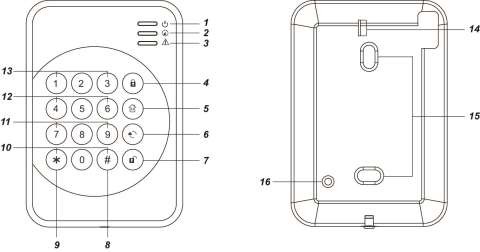
 **Arm Key**
5.
**Arm Key**
5.  **Home Key**
6.
**Home Key**
6.  **Key**
7.
**Key**
7.  **Disarm Key**
8. **# Key**
9. **\* Key**
10. **Dual Key Learning** models - Press both # and \* keys together to send Learning code
11. **Dual Key Medical Alarm (if enabled)** - press both 7 and 9 to trigger medical alarm
12. **Dual Key Fire Alarm (if enabled)** - press both 4 and 6 to trigger fire alarm
13. **Dual Key Panic Alarm (if enabled)** -press both 1 and 3 to trigger panic alarm
14. **Battery Insulato**
15. **Mounting Holes**
16. **Tamper Swtich** - Tamper Switch is not available for KP-23B-EL-NT
{% hint style="warning" %}
Note:
* A short beep will sound along with key press indicate that the button pressed is valid.
* 4 continuous beeps indicate mistake and the user should repeat the process again.
{% endhint %}
## LED Indicator
### **Active LED (Blue/Amber):**
* Blue LED on 5 seconds: the system is in Normal Operation Mode.
* Blue LED flashes for 5 seconds: **low battery in Normal Operation Mode**.
* Amber LED on: the system is in **Test Mode**.
* Amber LED flash: **low battery in Test Mode**.
### **Status LED (Blue/Red):**
* Red LED on: the system is in **Away Mode**
* Red LED flash: the system is in **Home Mode**.
* Blue LED on: activation of **Disarm Mode**.
* Blue LED flash: failure due to the following reasons:
* No response sent by the control panel within 4 seconds.
* Control Panel User PIN code was incorrect.
* Request for **Home** mode during **Arm** mode.
* Request for **Force** **arm**.
### **Fault LED (Amber):**
* Flash: system failure (panel tamper, AC fault, sensor temper, sensor out of order, open door)
* On: Alarm Memory (depend on Control Panel).
## Power
* Remote keypad uses one EL123AP 3V Lithium battery as its power source.
* Remote keypad can also detect the battery status. If the battery voltage is low, the Active LED will flash (**Amber** in **Test mode** or **Blue** in **Normal mode**) during operation. The Low battery signal will be sent along with regular signal transmissions to the Control Panel for displaying the status accordingly.
* Before shipment, the battery is pre-installed by the factory. Pull out the battery insulator to activate battery.
* When changing battery, press the tamper switch a couple times after removing old battery to discharge, then insert the new battery.
## Power Saving Feature
* When idle, Remote keypad is in **Stand-by** mode and uses no power. It will activate and **wake-up** for 5 seconds when any key is pressed.
* After 5 seconds of key inactivity, the power goes off and it returns t**o Stand-by** mode.
* Upon completion of a command input, the power goes off and Remote keypad returns to **Stand-by** mode.
## Test Mode
* Remote keypad can be put into Test mode by entering the Keypad PIN code (default: **0000**) followed by * key. The Active Amber LED will turn on along with a long beep.
* To exit Test mode, press key **twice**, Remote keypad will sound a long beep and the Active LED will turn off, then Remote keypad returns to Normal Operation mode. Otherwise, Remote keypad will automatically exit Test mode after 5 minutes and return to Normal Operation mode.
{% hint style="warning" %}
Note:
When Remote keypad is in Test mode, it operates as **wake-up** condition and will NOT disconnect after 5 seconds.
{% endhint %}
***Test Mode Function:***
* Press * key and then **7** key — Transmit Remote keypad learn signal
* Press * key and then **2** key — Enable Dual-key Panic Alarm function
* Press * key and then **3** key — Enable Dual-key Fire Alarm function
* Press * key and then **4** key — Enable Dual-key Medical Alarm function
* Press * key and then **5** key — Disable all Dual Key function (**Default**)
* Press * key and then **6** key — Edit Keypad Pin Code
Enter **Old** Keypad Pin Code and then press key
Enter **New** a new 4-digit Keypad Pin Code and then press **#** key**.**
* Press key **twice** — to leave the Test Mode**.**
* Press * key and then **8** key — Enable Arm/ Home without PIN Code function
* Press * key and then **9** key — Enable Arm/ Home with Control Panel User PIN Code function (**Default**)
## Tamper Protection
* The keypad is protected against any attempt to open the lid or to detach keypad from its mounting surface.
* Tamper protection is disabled when the keypad is in Test Mode.
## Installation Procedures
Step 1. Put the Control panel into learning mode, .
Step 2. Adding remote keypad into the Control Panel:
**Test Mode Learning:**
1. Put remote keypad in Test mode by entering KP PIN code (default: **0000**), then press * key. The Active Amber LED will turn on along with a long beep sound.
2. Press * key then **7** key. Remote keypad will sound a long beep.
{% hint style="warning" %}
Note:
If the remote keypad did not sound a long beep, it means the remote keypad did not send the learning code to the Control Panel, please press * key then **7** key again to send the learning code.
{% endhint %}
3. If the Control Panel receives the learning code, it will display the info accordingly. Refer to the operation manual of your Control Panel to complete the learn-in process.
4. After Control Panel receives the signal from remote keypad, it will send an acknowledgement back to remote keypad. The remote keypad will then beep 3 times to confirm the acknowledgement has been received.
**Dual-Key Learning:**
I. Press and both **#** and * keys together under Normal Operation Mode. Remote Keypad will sound a long beep.
{% hint style="warning" %}
Note:
If the remote keypad did not sound a long beep, it means the remote keypad did not send the learning code to the Control Panel, please press both **#** and * keys together again to send the learning code.
{% endhint %}
3. If the Control Panel receives the learning code, it will display the info accordingly. Refer to the operation manual of your Control Panel to complete the learn-in process.
4. After Control Panel receives the signal from remote keypad, it will send an acknowledgement back to remote keypad. The remote keypad will then beep 3 times to confirm the acknowledgement has been received.
{% hint style="danger" %}
#### IMPORTANT NOTE:
If remote keypad does not perform 3 beeps, please restart the learning procdeure.
{% endhint %}
**Disarm Key**
8. **# Key**
9. **\* Key**
10. **Dual Key Learning** models - Press both # and \* keys together to send Learning code
11. **Dual Key Medical Alarm (if enabled)** - press both 7 and 9 to trigger medical alarm
12. **Dual Key Fire Alarm (if enabled)** - press both 4 and 6 to trigger fire alarm
13. **Dual Key Panic Alarm (if enabled)** -press both 1 and 3 to trigger panic alarm
14. **Battery Insulato**
15. **Mounting Holes**
16. **Tamper Swtich** - Tamper Switch is not available for KP-23B-EL-NT
{% hint style="warning" %}
Note:
* A short beep will sound along with key press indicate that the button pressed is valid.
* 4 continuous beeps indicate mistake and the user should repeat the process again.
{% endhint %}
## LED Indicator
### **Active LED (Blue/Amber):**
* Blue LED on 5 seconds: the system is in Normal Operation Mode.
* Blue LED flashes for 5 seconds: **low battery in Normal Operation Mode**.
* Amber LED on: the system is in **Test Mode**.
* Amber LED flash: **low battery in Test Mode**.
### **Status LED (Blue/Red):**
* Red LED on: the system is in **Away Mode**
* Red LED flash: the system is in **Home Mode**.
* Blue LED on: activation of **Disarm Mode**.
* Blue LED flash: failure due to the following reasons:
* No response sent by the control panel within 4 seconds.
* Control Panel User PIN code was incorrect.
* Request for **Home** mode during **Arm** mode.
* Request for **Force** **arm**.
### **Fault LED (Amber):**
* Flash: system failure (panel tamper, AC fault, sensor temper, sensor out of order, open door)
* On: Alarm Memory (depend on Control Panel).
## Power
* Remote keypad uses one EL123AP 3V Lithium battery as its power source.
* Remote keypad can also detect the battery status. If the battery voltage is low, the Active LED will flash (**Amber** in **Test mode** or **Blue** in **Normal mode**) during operation. The Low battery signal will be sent along with regular signal transmissions to the Control Panel for displaying the status accordingly.
* Before shipment, the battery is pre-installed by the factory. Pull out the battery insulator to activate battery.
* When changing battery, press the tamper switch a couple times after removing old battery to discharge, then insert the new battery.
## Power Saving Feature
* When idle, Remote keypad is in **Stand-by** mode and uses no power. It will activate and **wake-up** for 5 seconds when any key is pressed.
* After 5 seconds of key inactivity, the power goes off and it returns t**o Stand-by** mode.
* Upon completion of a command input, the power goes off and Remote keypad returns to **Stand-by** mode.
## Test Mode
* Remote keypad can be put into Test mode by entering the Keypad PIN code (default: **0000**) followed by * key. The Active Amber LED will turn on along with a long beep.
* To exit Test mode, press key **twice**, Remote keypad will sound a long beep and the Active LED will turn off, then Remote keypad returns to Normal Operation mode. Otherwise, Remote keypad will automatically exit Test mode after 5 minutes and return to Normal Operation mode.
{% hint style="warning" %}
Note:
When Remote keypad is in Test mode, it operates as **wake-up** condition and will NOT disconnect after 5 seconds.
{% endhint %}
***Test Mode Function:***
* Press * key and then **7** key — Transmit Remote keypad learn signal
* Press * key and then **2** key — Enable Dual-key Panic Alarm function
* Press * key and then **3** key — Enable Dual-key Fire Alarm function
* Press * key and then **4** key — Enable Dual-key Medical Alarm function
* Press * key and then **5** key — Disable all Dual Key function (**Default**)
* Press * key and then **6** key — Edit Keypad Pin Code
Enter **Old** Keypad Pin Code and then press key
Enter **New** a new 4-digit Keypad Pin Code and then press **#** key**.**
* Press key **twice** — to leave the Test Mode**.**
* Press * key and then **8** key — Enable Arm/ Home without PIN Code function
* Press * key and then **9** key — Enable Arm/ Home with Control Panel User PIN Code function (**Default**)
## Tamper Protection
* The keypad is protected against any attempt to open the lid or to detach keypad from its mounting surface.
* Tamper protection is disabled when the keypad is in Test Mode.
## Installation Procedures
Step 1. Put the Control panel into learning mode, .
Step 2. Adding remote keypad into the Control Panel:
**Test Mode Learning:**
1. Put remote keypad in Test mode by entering KP PIN code (default: **0000**), then press * key. The Active Amber LED will turn on along with a long beep sound.
2. Press * key then **7** key. Remote keypad will sound a long beep.
{% hint style="warning" %}
Note:
If the remote keypad did not sound a long beep, it means the remote keypad did not send the learning code to the Control Panel, please press * key then **7** key again to send the learning code.
{% endhint %}
3. If the Control Panel receives the learning code, it will display the info accordingly. Refer to the operation manual of your Control Panel to complete the learn-in process.
4. After Control Panel receives the signal from remote keypad, it will send an acknowledgement back to remote keypad. The remote keypad will then beep 3 times to confirm the acknowledgement has been received.
**Dual-Key Learning:**
I. Press and both **#** and * keys together under Normal Operation Mode. Remote Keypad will sound a long beep.
{% hint style="warning" %}
Note:
If the remote keypad did not sound a long beep, it means the remote keypad did not send the learning code to the Control Panel, please press both **#** and * keys together again to send the learning code.
{% endhint %}
3. If the Control Panel receives the learning code, it will display the info accordingly. Refer to the operation manual of your Control Panel to complete the learn-in process.
4. After Control Panel receives the signal from remote keypad, it will send an acknowledgement back to remote keypad. The remote keypad will then beep 3 times to confirm the acknowledgement has been received.
{% hint style="danger" %}
#### IMPORTANT NOTE:
If remote keypad does not perform 3 beeps, please restart the learning procdeure.
{% endhint %}
| Step 3. | After the Remote keypad is learnt-in, put the Control Panel into Walk Test mode, hold the Remote keypad in the desired location, and send the learning code to the Control Panel to confirm this location is within the signal range of the Control Panel. To send the learning code, either press the * key then 7 key under Test Mode or press both # and * keys together under Normal Operation Mode. |
| Step 4. | When you are satisfied that the Remote keypad works in the chosen location, you can proceed with mounting the Remote keypad following the steps described below (see Mounting Remote keypad). |
| Step 5. | Set your own the KP Pin Code:
|
| Step 6. | Press key twice to leave Test mode and the installation is completed. |
key. If panel has no fault and arming is successful, the Status Red LED will turn ON alone with a long beep.
* **Enter Home Mode**: Enter any one of Control Panel user cods and key. If panel has no fault and arming is successful, the Status Red LED will flash 4 times alone with 3 beeps.
* **Return to Disarm Mode**: Enter any one of Control Panel user code and key. If disarm is successful, the Status Blue LED will turn ON along with 2 beeps.
### **Arm/Home without Control Panel PIN Code**
In the Test mode, Pressing * key and then **8** key to enable Arm/ Home without PIN Code function
* **Enter Arm Mode**: Press key. If panel has no fault and arming is successful, the Status Red LED will turn ON alone with one long beep.
* **Enter Home Mode**: Press key. If panel has no fault and arming is successful, the Status Red LED will flash 4 times alone with 3 beeps.
* **Return to Disarm Mode**: Enter any one of Control Panel user code and Key. If disarm is successful, the Status Blue LED will turn ON along with 2 beeps.
## Dual-key Alarm Function
* Panic Alarm — Press both **1** and **3** keys to trigger Panic alarm.
* Fire Alarm — Press both **4** and **6** keys to trigger Fire alarm.
* Medical Alarm — Press both **7** and **9** keys to trigger Medical alarm.
{% hint style="warning" %}
Note:
The dual-key alarm function is disabled by default. To enable it, please refer to the **Test Mode** section
{% endhint %}
## General Operation
* If there is **Alarm Memory,** the Status Blue LED and fault LED will turn ON with 5 beeps (depending on Control Panel).
* Enter Test mode — Enter **Keypad PIN code** and then press * key.
* Panic Alarm — Press **1** key + **3** key at the same time. (if the function is enabled)
* Fire Alarm — Press **4** key + **6** key at the same time. (if the function is enabled) Medical Alarm — Press **7** key + **9** key at the same time. (if the function is enabled) Check Control Panel Status — Normal Mode Press key. Red LED on: the system is in **Away Mode**
* Red LED flash: the system is in **Home Mode**.
* Blue LED on: activation of **Disarm Mode**.
* Blue flash: failure due to the following reasons:
\- No response sent by the control panel within 4 seconds.
\- PIN code was incorrect.
\- Request for **Home** mode during **Arm** mode.
\- Request for **Force** **arm**.
## Fault Conditions
*When Remote Keypad is under **NORMAL OPERATION MODE,***
1. When fault condition exists within Control Panel, if the Keypad is used to arm the panel, the keypad Status Blue and Fault Amber LED will flash 4 times along with 3 beeps to indicate fault condition. User can force arm the Control Panel by performing the arm action again.
2. When the Keypad is used to disarm the panel, the Active Blue LED will turn ON alone with two short beeps indicating normal operation. At a fault situation, it will emit 5 times and turn on both Status Blue and Fault Amber LED for 5 seconds.
3. If the **Control Panel** is under Arm Mode, you **CANNOT** activate Home mode with Remote keypad. The Status Blue LED will flash 4 times to indicate transmission error.
4. If you input incorrect KP Pin code for 4 times, KP will disable the key input for 1 minute, indicated by all LEDs flashing 3 times and 6 beeps. After 1 minute, KP will emit a long beep to indicate that the key function is back to normal.
## Appendix
If you have forgotten the Keypad PIN Code or anything wrong happened in the Remote keypad, you can reset the Remote keypad to factory default. Factory reset will set the Keypad PIN Code back to **0000**. The Keypad also must be learnt into Control Panel again after reset. ***Reset to factory default:***
Step 1 Remove the batteries and release the tamper.
Step 2 Press & hold **3** key while inserting the battery.
Step 3 Continue pressing **3** until three short beeps to indicate successful reset.
Step 4 Release **3** key, the reset process is complete.
Whenever the Keypad is removed from the Control Panel, it should be put to factory reset as well to clear its Control Panel memory.