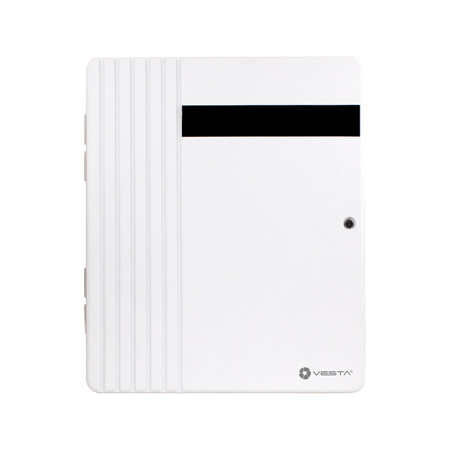
# VESTA-112N-SF1

## HYBRID 4G + IP alarm system VESTA

<figure><img src="https://1580875003-files.gitbook.io/~/files/v0/b/gitbook-x-prod.appspot.com/o/spaces%2FZJzpNocHhYVmD43GZobR%2Fuploads%2FC4HVtwyAzYI2PbT5C6vI%2Fimage.png?alt=media&#x26;token=1dab2fb1-ad21-446a-82fb-611ccccee2a3" alt=""><figcaption></figcaption></figure>

Welcome to the **VESTA Wireless and Hybrid Control Panels Knowledge Base**. Here, you'll find all the essential information for installing, configuring, and maintaining VESTA security control panels that operate via wireless communication and hybrid systems.

This manual is designed for technicians, integrators, and advanced users who need a detailed understanding of these control panels. It includes step-by-step guides, troubleshooting tips, device compatibility, and best practices to optimize system performance.

## QUICK GUIDE&#x20;

## 1. Panel Registration as Installer and User

### 1.1 Installer Registration

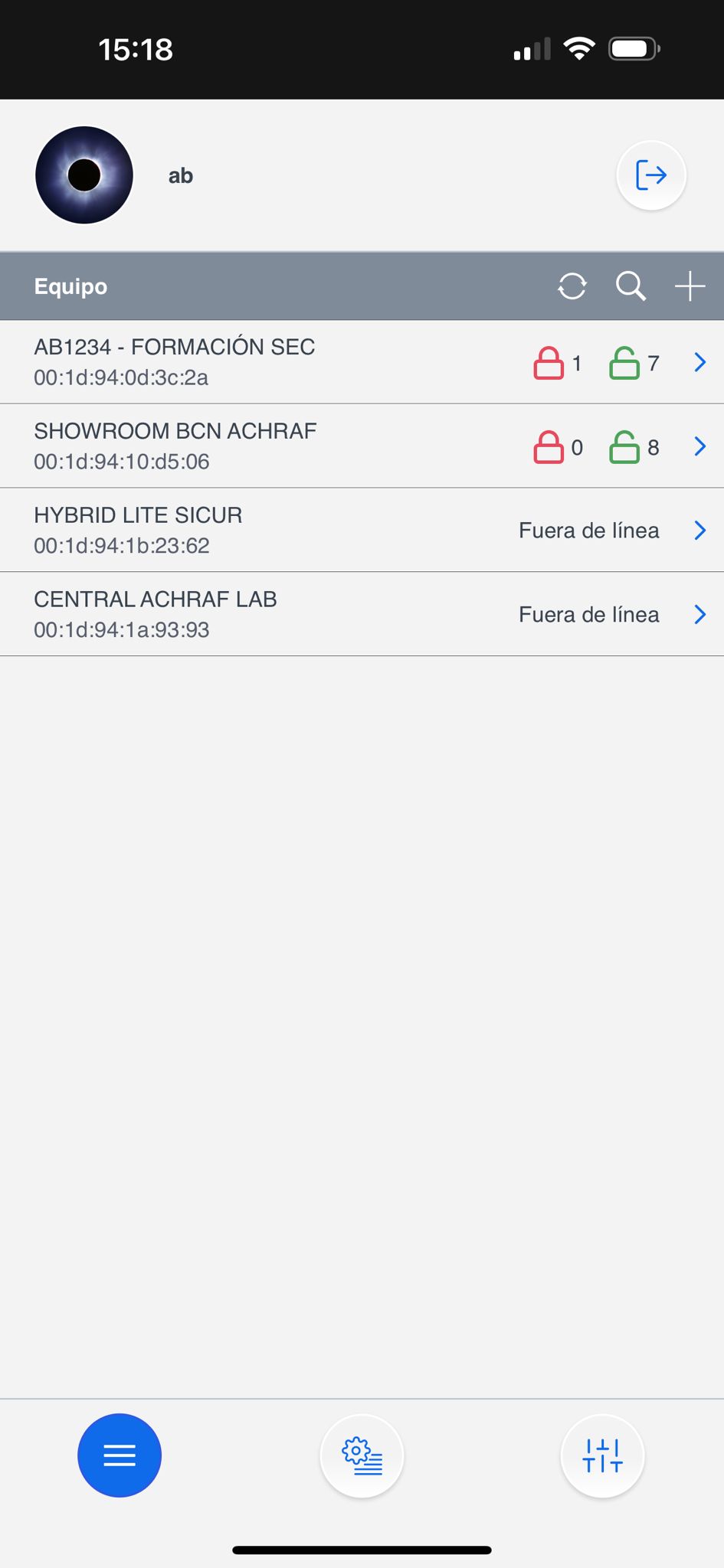
<table data-view="cards"><thead><tr><th></th><th></th><th></th></tr></thead><tbody><tr><td><strong>Step 1:</strong> Log in as an installer in the <a href="https://github.com/AchrafBr1/vesta-knowledge-base/blob/main/guia-de-usuario-smarthomesec.md">SmartHomeSec</a> APP</td><td><img src="https://1580875003-files.gitbook.io/~/files/v0/b/gitbook-x-prod.appspot.com/o/spaces%2FZJzpNocHhYVmD43GZobR%2Fuploads%2Fgit-blob-05113b0d3328df3b166ab295fa6757e6ac242b74%2Fimage%20(9)%20(1).png?alt=media" alt="" data-size="original"></td><td></td></tr><tr><td><p><strong>Step 2:</strong> Select the + button</p><p>(Add panel)</p></td><td><img src="https://1580875003-files.gitbook.io/~/files/v0/b/gitbook-x-prod.appspot.com/o/spaces%2FZJzpNocHhYVmD43GZobR%2Fuploads%2Fgit-blob-fa8de8b9f61fbaeb03070c23f91346bb14f246bc%2Fimage%20(10)%20(1).png?alt=media" alt="" data-size="original"></td><td></td></tr><tr><td><strong>Step 3:</strong> Enter the panel's MAC address found on a label of panel</td><td><img src="https://1580875003-files.gitbook.io/~/files/v0/b/gitbook-x-prod.appspot.com/o/spaces%2FZJzpNocHhYVmD43GZobR%2Fuploads%2Fgit-blob-7382d20b1eed8959c5689860688539c850e4e52e%2Fimage%20(11)%20(1).png?alt=media" alt="" data-size="original"></td><td></td></tr></tbody></table>

Once the panel is registered as an installer, it is ready ✨ for configuration.

{% hint style="danger" %}
The panel must be on and connected to the internet. We have 15 minutes after powering it up to register the panel.
{% endhint %}

{% hint style="success" %}
The MAC of the panel is always on one side of the panel physically. In the NAME field, we should place the subscriber or any identifier of the panel.
{% endhint %}

### 2. User Account Registration

The user account is used to control the system and is intended for the end user. From the SmartHomeSec APP, this account allows arming, disarming, and performing any operation. There are two types of user accounts: Master and Slave.

The first account we register is the Master. The main difference between the Master and Slave accounts is that the Master allows creating new users, while the Slave cannot create new accounts.

<table data-view="cards"><thead><tr><th></th><th></th><th></th></tr></thead><tbody><tr><td><strong>Step 1:</strong> Access the panel as installers, the default code is [7982]</td><td><img src="https://1580875003-files.gitbook.io/~/files/v0/b/gitbook-x-prod.appspot.com/o/spaces%2FZJzpNocHhYVmD43GZobR%2Fuploads%2Fgit-blob-f54c92555c65a3674a618b8357d25fab097a5a48%2FImagen%20de%20WhatsApp%202024-06-02%20a%20las%2015.19.19_5e1f9a7f.jpg?alt=media" alt="" data-size="original"></td><td></td></tr><tr><td><strong>Step 2:</strong> Select the Main system menu section<img src="https://1580875003-files.gitbook.io/~/files/v0/b/gitbook-x-prod.appspot.com/o/spaces%2FZJzpNocHhYVmD43GZobR%2Fuploads%2Fgit-blob-cb348105e6110fe9c5b80a7a5282725a96e9f0f9%2Fimage%20(14)%20(1).png?alt=media" alt=""></td><td></td><td></td></tr><tr><td><strong>Step 3:</strong> Select account list</td><td></td><td><img src="https://1580875003-files.gitbook.io/~/files/v0/b/gitbook-x-prod.appspot.com/o/spaces%2FZJzpNocHhYVmD43GZobR%2Fuploads%2Fgit-blob-82a8946a8646a97397a045388512821bfb05f707%2Fimage%20(15)%20(1).png?alt=media" alt="" data-size="original"></td></tr><tr><td><strong>Step 4:</strong> Select add</td><td></td><td><img src="https://1580875003-files.gitbook.io/~/files/v0/b/gitbook-x-prod.appspot.com/o/spaces%2FZJzpNocHhYVmD43GZobR%2Fuploads%2Fgit-blob-0abd9646d7f4af8b35d780f1787933971e0a348c%2Fimage%20(17)%20(1).png?alt=media" alt="" data-size="original"></td></tr><tr><td><strong>Step 5:</strong> If it's a new user: Select create an account</td><td><img src="https://1580875003-files.gitbook.io/~/files/v0/b/gitbook-x-prod.appspot.com/o/spaces%2FZJzpNocHhYVmD43GZobR%2Fuploads%2Fgit-blob-07dfedb38f6af5ae067a35bcf1d9ef5f604a82ea%2Fimage%20(18)%20(1).png?alt=media" alt="" data-size="original"></td><td></td></tr><tr><td><p><strong>Step 6:</strong> Fill in the user data for APP access</p><p><img src="https://1580875003-files.gitbook.io/~/files/v0/b/gitbook-x-prod.appspot.com/o/spaces%2FZJzpNocHhYVmD43GZobR%2Fuploads%2Fgit-blob-7cd25be9e2c68ff7bf213db266628f6080906e9c%2Fimage%20(19)%20(1).png?alt=media" alt="" data-size="original"></p></td><td></td><td></td></tr></tbody></table>

{% hint style="success" %}
User registration completed! For information on how to operate with the user APP, follow the SmartHomeSec user guide.
{% endhint %}

## 3. Add and Configure Devices

To add and configure VESTA RF devices, follow these steps:

### 3.1 Add Devices

Step 1: Access the panel configuration from the installer APP:

<figure><img src="https://1580875003-files.gitbook.io/~/files/v0/b/gitbook-x-prod.appspot.com/o/spaces%2FZJzpNocHhYVmD43GZobR%2Fuploads%2Fgit-blob-e453d09285cd283984eca047979d10f1e9d9d1a0%2Fimage%20(20).png?alt=media" alt="" width="192"><figcaption><p>Installer -> Settings</p></figcaption></figure>

Step 2: Select "Devices" in the menu.

<figure><img src="https://1580875003-files.gitbook.io/~/files/v0/b/gitbook-x-prod.appspot.com/o/spaces%2FZJzpNocHhYVmD43GZobR%2Fuploads%2Fgit-blob-afbc0b8f69e056cf262358c1af3161bad927a3c7%2Fimage%20(21).png?alt=media" alt="" width="190"><figcaption><p>Installer -> Settings -> Devices</p></figcaption></figure>

Step 3: In the menu click "Add device".

<table data-view="cards"><thead><tr><th></th><th></th><th></th></tr></thead><tbody><tr><td><img src="https://1580875003-files.gitbook.io/~/files/v0/b/gitbook-x-prod.appspot.com/o/spaces%2FZJzpNocHhYVmD43GZobR%2Fuploads%2Fgit-blob-57cf8661f10d9a1a81f5c73c9d4b8a9cb1155299%2Fimage%20(23).png?alt=media" alt="" data-size="original"></td><td></td><td></td></tr><tr><td><img src="https://1580875003-files.gitbook.io/~/files/v0/b/gitbook-x-prod.appspot.com/o/spaces%2FZJzpNocHhYVmD43GZobR%2Fuploads%2Fgit-blob-c8990cc0a12972174eb326678614733225eee9bc%2Fimage%20(24).png?alt=media" alt="" data-size="original"></td><td></td><td></td></tr></tbody></table>

Step 4: Select the device type you want to add, e.g., Motion Detector. Press and hold the pairing button on the device until the LED flashes (refer to the device's manual for specific instructions).

Step 5: Follow the on-screen instructions to complete the pairing process. The panel will confirm the successful addition of the device.

<figure><img src="https://1580875003-files.gitbook.io/~/files/v0/b/gitbook-x-prod.appspot.com/o/spaces%2FZJzpNocHhYVmD43GZobR%2Fuploads%2Fgit-blob-01938536dfb1ce06ae3257986b40479b64be933d%2Fimage%20(27).png?alt=media" alt=""><figcaption><p>Botón learn de los dispositivos VESTA</p></figcaption></figure>

{% hint style="danger" %}
Important! In case of PIRCAMS and keyboards: The keystroke must be 3 or 4 seconds. While the rest of the devices with a short press is enough to add them.
{% endhint %}

Once added, the RF devices will be ready for use and can be managed from the same section, here is an example of sensor attribute configuration:

### 3.2 Zone configuration

<table data-view="cards"><thead><tr><th></th><th></th><th></th></tr></thead><tbody><tr><td><img src="https://1580875003-files.gitbook.io/~/files/v0/b/gitbook-x-prod.appspot.com/o/spaces%2FZJzpNocHhYVmD43GZobR%2Fuploads%2Fgit-blob-8c1c760a18cf5bb8cc3675c7ed70712c3f30b6d9%2Fimage%20(28).png?alt=media" alt="" data-size="original"></td><td></td><td></td></tr><tr><td><img src="https://1580875003-files.gitbook.io/~/files/v0/b/gitbook-x-prod.appspot.com/o/spaces%2FZJzpNocHhYVmD43GZobR%2Fuploads%2Fgit-blob-32f411d6edc0c08a3afb4e76668e540401e94138%2Fimage%20(30).png?alt=media" alt="" data-size="original"></td><td></td><td></td></tr><tr><td><img src="https://1580875003-files.gitbook.io/~/files/v0/b/gitbook-x-prod.appspot.com/o/spaces%2FZJzpNocHhYVmD43GZobR%2Fuploads%2Fgit-blob-6841f2701a2d2477ebd835c40abb3d0fe33d29d1%2Fimage%20(31).png?alt=media" alt="" data-size="original"></td><td></td><td></td></tr></tbody></table>

{% hint style="info" %}
To configure the zones correctly, it is important to be familiar with the available attributes and their impact on the behavior of the alarm system.

For example: Interior is an instant zone and Entry is a delayed zone; we can assign these attributes in the section Response on arming which means "When the system is armed."
{% endhint %}

## 4. Panel configuration and reporting to ARC (Alarm Receiving Central Station)

### 4.1 Security configuration

This section details how to adjust the **siren duration** during an alarm and set the **input and output delays**. For ease of identification and adjustment, critical options are highlighted in \*\*color \*\*<mark style="color:red;">**red**</mark>.

<table data-view="cards"><thead><tr><th></th><th></th><th></th></tr></thead><tbody><tr><td><img src="https://1580875003-files.gitbook.io/~/files/v0/b/gitbook-x-prod.appspot.com/o/spaces%2FZJzpNocHhYVmD43GZobR%2Fuploads%2Fgit-blob-20490cd089c7e1a114551573484dfd0cbd4cb3c2%2Fimage%20(1).png?alt=media" alt="" data-size="original"></td><td>Ajustes -> Panel</td><td></td></tr><tr><td><img src="https://1580875003-files.gitbook.io/~/files/v0/b/gitbook-x-prod.appspot.com/o/spaces%2FZJzpNocHhYVmD43GZobR%2Fuploads%2Fgit-blob-a2b140673ee18dae59e1922197d47831b7b000ac%2Fimage%20(3).png?alt=media" alt="" data-size="original"></td><td>Ajustes -> Panel -> Seguridad</td><td></td></tr><tr><td><img src="https://1580875003-files.gitbook.io/~/files/v0/b/gitbook-x-prod.appspot.com/o/spaces%2FZJzpNocHhYVmD43GZobR%2Fuploads%2Fgit-blob-328d6e12eaf1e59629cd5911c61686d58febb3ad%2Fimage%20(4).png?alt=media" alt="" data-size="original"></td><td><ol><li>La <strong>siren duration</strong> en in case of alarm</li><li>Enabling this option delays the alarm reporting by 30 seconds. (<strong>Recommended to leave OFF</strong>)</li><li>Ajustar los <strong>entry and exit delays</strong></li></ol></td><td></td></tr></tbody></table>

### 4.2 Panel configuration

<table data-view="cards"><thead><tr><th></th><th></th><th></th></tr></thead><tbody><tr><td><img src="https://1580875003-files.gitbook.io/~/files/v0/b/gitbook-x-prod.appspot.com/o/spaces%2FZJzpNocHhYVmD43GZobR%2Fuploads%2Fgit-blob-20490cd089c7e1a114551573484dfd0cbd4cb3c2%2Fimage%20(1).png?alt=media" alt="" data-size="original"></td><td>Settings -> Panel</td><td></td></tr><tr><td><img src="https://1580875003-files.gitbook.io/~/files/v0/b/gitbook-x-prod.appspot.com/o/spaces%2FZJzpNocHhYVmD43GZobR%2Fuploads%2Fgit-blob-83b61ae3104d6677a6a4b97d4a2810229068b9f7%2Fimage%20(10).png?alt=media" alt="" data-size="original"></td><td>Settings-> Panel -> Panel</td><td></td></tr><tr><td><img src="https://1580875003-files.gitbook.io/~/files/v0/b/gitbook-x-prod.appspot.com/o/spaces%2FZJzpNocHhYVmD43GZobR%2Fuploads%2Fgit-blob-4ad55e7e5cb63c9f3dc2dafa4646e12be50ef899%2Fimage%20(7).png?alt=media" alt="" data-size="original"></td><td>Polling --> test time to ARC </td><td></td></tr></tbody></table>

### 4.3 Configure user codes

<table data-view="cards"><thead><tr><th></th><th></th><th></th></tr></thead><tbody><tr><td><img src="https://1580875003-files.gitbook.io/~/files/v0/b/gitbook-x-prod.appspot.com/o/spaces%2FZJzpNocHhYVmD43GZobR%2Fuploads%2Fgit-blob-e453d09285cd283984eca047979d10f1e9d9d1a0%2Fimage%20(20).png?alt=media" alt="Instalador -> Ajustes" data-size="original"></td><td>Inslogging -> Settings</td><td></td></tr><tr><td><img src="https://1580875003-files.gitbook.io/~/files/v0/b/gitbook-x-prod.appspot.com/o/spaces%2FZJzpNocHhYVmD43GZobR%2Fuploads%2Fgit-blob-321d58c9b41adcb608ec919ccd068e6154a484ea%2Fimage%20(8).png?alt=media" alt="" data-size="original"></td><td>Settings -> User PIN</td><td></td></tr><tr><td><img src="https://1580875003-files.gitbook.io/~/files/v0/b/gitbook-x-prod.appspot.com/o/spaces%2FZJzpNocHhYVmD43GZobR%2Fuploads%2Fgit-blob-9e0e486da7c3c4342426712016c53740c66d55be%2Fimage%20(9).png?alt=media" alt="" data-size="original"></td><td>Add the Name and code for each user, this code will allow the user to switch modes from the APP or keyboards see User Manual for more information.</td><td></td></tr></tbody></table>

### 4.4 Updating the panel

It is crucial to keep the control panel up to date to ensure optimal system performance and security. Updates may contain essential enhancements, bug fixes and security patches that protect against known vulnerabilities.

<table data-view="cards"><thead><tr><th></th><th></th><th></th></tr></thead><tbody><tr><td><img src="https://1580875003-files.gitbook.io/~/files/v0/b/gitbook-x-prod.appspot.com/o/spaces%2FZJzpNocHhYVmD43GZobR%2Fuploads%2Fgit-blob-20490cd089c7e1a114551573484dfd0cbd4cb3c2%2Fimage%20(1).png?alt=media" alt="" data-size="original"></td><td>Ajustes -> Panel</td><td></td></tr><tr><td><img src="https://1580875003-files.gitbook.io/~/files/v0/b/gitbook-x-prod.appspot.com/o/spaces%2FZJzpNocHhYVmD43GZobR%2Fuploads%2Fgit-blob-2acbdadec0e86701ca3533bb235de1cf695f66c2%2Fimage%20(11).png?alt=media" alt="" data-size="original"></td><td>Panel -> Actualización de FW</td><td></td></tr><tr><td><img src="https://1580875003-files.gitbook.io/~/files/v0/b/gitbook-x-prod.appspot.com/o/spaces%2FZJzpNocHhYVmD43GZobR%2Fuploads%2Fgit-blob-9e542d50140e64df5cff2a12b9cc90ea614efb77%2Fimage%20(12).png?alt=media" alt="" data-size="original"></td><td>Select from the list the firmware with the highest version (Highest number and highest letter).</td><td></td></tr></tbody></table>

{% hint style="info" %}
NOTE: The panel by 2G or low coverage may take 8 minutes to update.

If the panel communicates over 4G/LTE with good coverage the update may take 3-5 minutes
{% endhint %}

{% hint style="danger" %}
Once the panel is in upgrade mode <mark style="color:red;">**Do NOT turn off**</mark> or disconnect under any circumstances. The panel will restart automatically.

SWITCHING OFF THE PANEL DURING AN UPGRADE MAY RENDER IT COMPLETELY INOPERATIVE.
{% endhint %}

### 4.5 Reporting configuration to ARC (Alarm Receiving Center)

***Reporte Eventos***

<table data-view="cards"><thead><tr><th></th><th></th><th></th></tr></thead><tbody><tr><td><img src="https://1580875003-files.gitbook.io/~/files/v0/b/gitbook-x-prod.appspot.com/o/spaces%2FZJzpNocHhYVmD43GZobR%2Fuploads%2Fgit-blob-e5450338db75d91c7eb3aca9ddadc9b78bb5f5ed%2Fimage%20(13).png?alt=media" alt="" data-size="original"></td><td>Settings -> Report</td><td></td></tr><tr><td><img src="https://1580875003-files.gitbook.io/~/files/v0/b/gitbook-x-prod.appspot.com/o/spaces%2FZJzpNocHhYVmD43GZobR%2Fuploads%2Fgit-blob-59cd59ff8a6a7ea0226d64c417c6619aa73511d4%2Fimage%20(14).png?alt=media" alt="" data-size="original"></td><td>In the report section we have report configuration for events and captured files for PIRCAMS photos.</td><td></td></tr><tr><td><img src="https://1580875003-files.gitbook.io/~/files/v0/b/gitbook-x-prod.appspot.com/o/spaces%2FZJzpNocHhYVmD43GZobR%2Fuploads%2Fgit-blob-252a629c59207dd422614f4dd48a94f963a68ca4%2Fimage%20(15).png?alt=media" alt="" data-size="original"></td><td>In this section we configure the repote URL of our ARC, and very important the GROUP 2 or higher since group 1 is used for the APP. APPENDIX 2 for examples</td><td></td></tr></tbody></table>

*APPENDIX 2*

{% hint style="success" %}
Examples of **EVENTS** reporting in different protocols:

:fire: **MANITOU (most used in Spain): ip\://**<mark style="color:blue;">**ACCT**</mark>**@**<mark style="color:orange;">**IP**</mark>**:**<mark style="color:purple;">**PORT**</mark>**/MAN**

SIA: **ip\://**<mark style="color:blue;">**ACCT**</mark>@<mark style="color:orange;">**IP**</mark>**:**<mark style="color:purple;">**PORT**</mark>/SIA2

CID: **ip\://**<mark style="color:blue;">**ACCT**</mark>@<mark style="color:orange;">**IP**</mark>**:**<mark style="color:purple;">**PORT**</mark>/CID
{% endhint %}

***Photo report***.

<table data-view="cards"><thead><tr><th></th><th></th><th></th></tr></thead><tbody><tr><td><img src="https://1580875003-files.gitbook.io/~/files/v0/b/gitbook-x-prod.appspot.com/o/spaces%2FZJzpNocHhYVmD43GZobR%2Fuploads%2Fgit-blob-e5450338db75d91c7eb3aca9ddadc9b78bb5f5ed%2Fimage%20(13).png?alt=media" alt="" data-size="original"></td><td>Settings -> Report</td><td></td></tr><tr><td><img src="https://1580875003-files.gitbook.io/~/files/v0/b/gitbook-x-prod.appspot.com/o/spaces%2FZJzpNocHhYVmD43GZobR%2Fuploads%2Fgit-blob-59cd59ff8a6a7ea0226d64c417c6619aa73511d4%2Fimage%20(14).png?alt=media" alt="" data-size="original"></td><td>In the report section we have report configuration for events and captured files for PIRCAMS photos.</td><td></td></tr><tr><td><img src="https://1580875003-files.gitbook.io/~/files/v0/b/gitbook-x-prod.appspot.com/o/spaces%2FZJzpNocHhYVmD43GZobR%2Fuploads%2Fgit-blob-3f0b4a201b93da8cf6d741d5ffd76ff34d795e71%2Fimage%20(16).png?alt=media" alt="" data-size="original"></td><td>In this section we configure the repote URL of our CRA for sending photos. APPENDIX 3 for examples</td><td></td></tr></tbody></table>

{% hint style="success" %}
Examples of **PHOTOS** reporting in different protocols:

:fire: **MANITOU**: <mark style="color:blue;">**ACCT**</mark>**@**<mark style="color:orange;">**IP**</mark>**:PORT**
{% endhint %}

## Photo report for SENTINEL software

{% hint style="info" %}
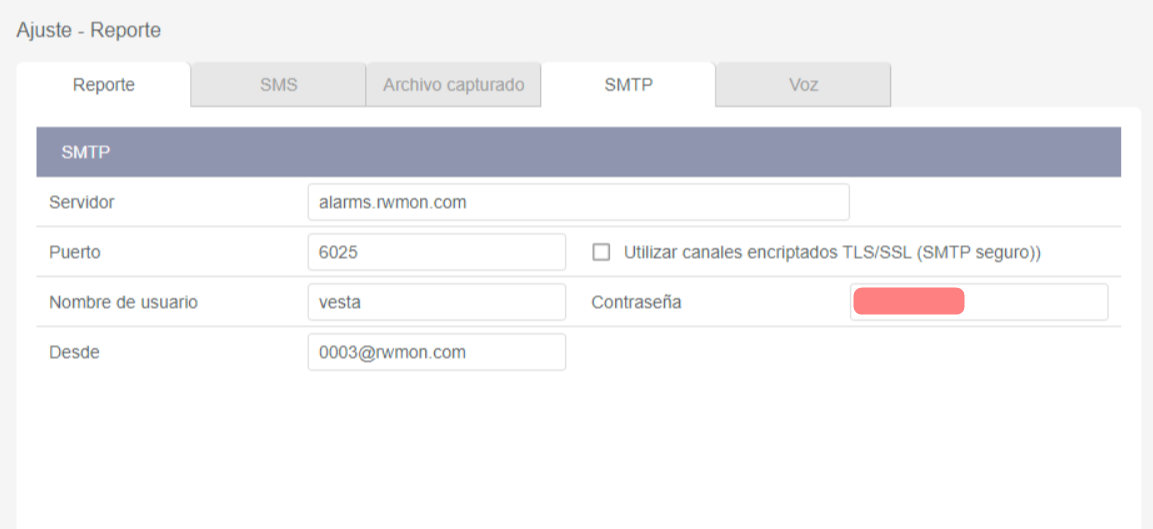
Step 1: Program SMTP information in settings -> Report&#x20;
{% endhint %}

<figure><img src="https://1580875003-files.gitbook.io/~/files/v0/b/gitbook-x-prod.appspot.com/o/spaces%2FZJzpNocHhYVmD43GZobR%2Fuploads%2F0JtB6fgHdVz5MEjKxPNX%2Fimage.png?alt=media&#x26;token=dcf9acab-06f5-4984-82c0-1ba815a082fa" alt=""><figcaption><p>Example</p></figcaption></figure>

{% hint style="info" %}
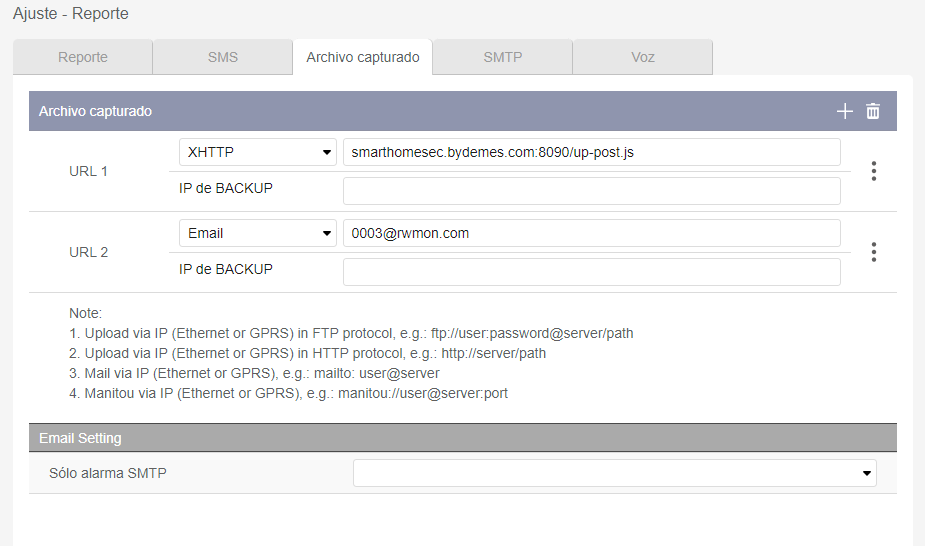
Step 2: Program the email provided by central monitoring station in "Captured files"
{% endhint %}

<figure><img src="https://1580875003-files.gitbook.io/~/files/v0/b/gitbook-x-prod.appspot.com/o/spaces%2FZJzpNocHhYVmD43GZobR%2Fuploads%2FGahEIJIcTLaNoStvcHCl%2Fimage.png?alt=media&#x26;token=be532946-32c7-41dc-9760-dfccf140f84b" alt=""><figcaption></figcaption></figure>

{% hint style="warning" %}
**IMPORTANT:** If you use IP cameras integrated with VESTA, you have to lower the camera resolution to 2MP or lower for proper operation.
{% endhint %}

## COMPLETE INSTALATION MANUALS

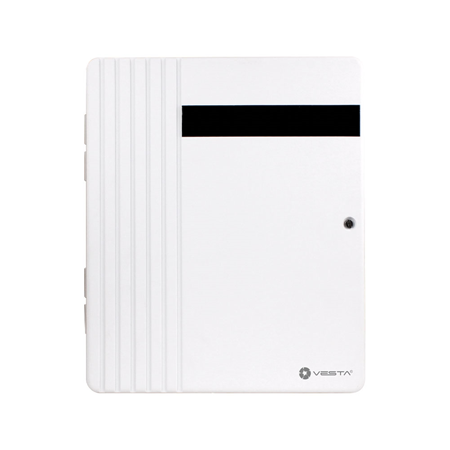
<figure><img src="https://1580875003-files.gitbook.io/~/files/v0/b/gitbook-x-prod.appspot.com/o/spaces%2FZJzpNocHhYVmD43GZobR%2Fuploads%2F1htjV2VgRcpodB0zNLhQ%2Fimage.png?alt=media&#x26;token=f015c4e3-08c8-4d4a-a26d-d1775b326d0e" alt=""><figcaption><p>Hybrid Grade 3</p></figcaption></figure>

{% file src="<https://1580875003-files.gitbook.io/~/files/v0/b/gitbook-x-prod.appspot.com/o/spaces%2FZJzpNocHhYVmD43GZobR%2Fuploads%2Fl9YG1iwIp4Rq814CzOSS%2FHybrid%20Panel-1_Installation%20Guide.pdf?alt=media&token=f0c14489-fbec-4d23-856b-48da9f8896a5>" %}