> For the complete documentation index, see [llms.txt](https://vesta-guide.gitbook.io/vesta-guide/llms.txt). Markdown versions of documentation pages are available by appending `.md` to page URLs; this page is available as [Markdown](https://vesta-guide.gitbook.io/vesta-guide/vesta-156n.md).
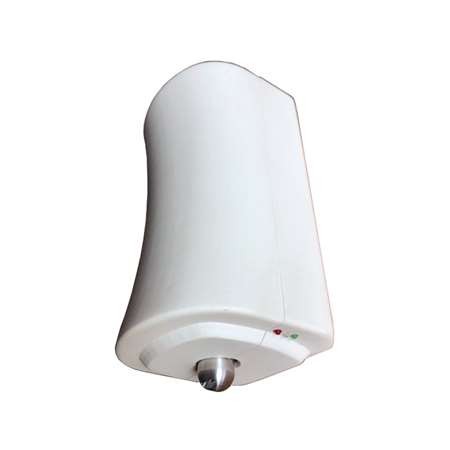
# VESTA-156N
Configuration manual of the VESTA-156N
## FIRST OF ALL:
### • Connect the battery of the I/O module

{% hint style="danger" %}
NOTE:
### Connect the smoke generator in the terminals“smoke” only AFTER made the tests of working.
{% endhint %}
## Learning I/O module on the panel
1. Activate the learning function on the panel (for further info, refer to the panel manual)


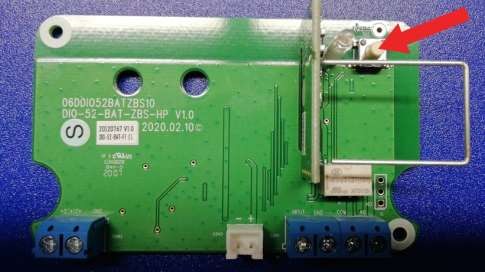
2. Press the button on the I/O module installed inside the VESTA-156
3. Select the detected device and press OK

4. Assign the appropriate area to the output device (DO), and choose the zone number and the name of the device: SMOKE ACTIVATION

{% hint style="warning" %}
Note: The output module (DO) must be set as. "Separate devices"
{% endhint %}
5. Assign at the (DI) the same area to the output device (DO) and choose the zone number and the device name: SMOKE TAMPER.

6. Set the input module as a 24H Burglar Alarm
## Configuration activation rule
In the menu "automation rule" create a new rule as indicated below:

## Double coincidence configuration
In the device settings, set at least 2 devices with the "Cross zone" attribute to activate the smoke generator ONLY in the event of the activation of both devices in a programmable time and thus avoid improper activations.
Example of the Cross Zone programming:


In the menu "Security“, set the timer for the cross zones to 1 minute or more (time within which the 2 zones must be activated to trigger the smoke generator)