# VESTA-170
**PRLM-CH3-AC-ZW**
## Relay Controllers / 3-Channel Z-Wave Relay Switch.
## **Introduction**
PRLM-CH3-AC-ZW is a Z-Wave 3-channel Relay Switch that can be connected to wired devices and set to Normal Open (N.O.) status. After joining Z-Wave network, the Relay Switch can be controlled via Z-Wave network to activate connected devices.
Z-Wave is a wireless communication protocol that uses a low-power RF radio. By taking advantage of the Z-Wave mesh network, commands can be routed to their destination via intermediary “listening” Z-Wave products.
The Relay can control Z-Wave nodes by simply pressing the function button and can also alert you to signal communication problems.
## **Parts Identification**
**Top Cover** **Base**

1. **Switch Button 1/Function Button**
* Press the button 3 times within 1 second to send a learn code.
* Press and hold the button for 10 seconds to factory reset.
* Press the button to switch ON/OFF the Relay Channel 1.
2. **Switch Button 2**
* Press the button to switch ON/OFF the Relay Channel 2.
3. **Switch Button 3**
* Press the button to switch ON/OFF the Relay Channel 3.
{% hint style="info" %}
When Switch Button 2/3 is pressed, the Relay Channel 2/3 will instantly switch to ON/OFF.
When Switch Button 1 is pressed, the Relay Channel 1 will switch to ON/OFF after one second, because the device needs to identify whether the button press is for switch on/off or for sending a learn code.
{% endhint %}
4. **LED indicator 1**
5. **LED indicator 2**
6. **LED indicator 3**
The LED indicator 1/2/3 are used to indicate Relay Channel 1/2/3 status:
1. LED 1 On/Off: Relay Channel 1 On/Off
2. LED 2 On/Off: Relay Channel 2 On/Off
3. LED 3 On/Off: Relay Channel 3 On/Off
When powered on, all LEDs will sequentially flash for 1 cycle.
When in learning mode, all LEDs will flash once every second.
When learning is successful, all LEDs will flash quickly for 3 times.
7. **Mounting Holes**
### **Connection Terminals**
Connect the wire into the terminal, tighten the screw to close the clipper and hold wire in place. Unscrew to open the clipper to remove the wire connected to the terminal.
8. **Line (AC input)**
9. **Neutral**
10. **NO (Channel 1)**
For Normal Open connection with the device
11. **Common (Channel 1)**
12. **NO (Channel 2)**
For Normal Open connection with the device
13. **Common (Channel 2)**
14. **NO (Channel 3)**
For Normal Open connection with the device
15. **Common (Channel 3)**
16. **Strain Relief Clamp**
The clamps are used for securing the wires, and providing strain relief to protect the wires from the metal cutout.
17. **Wiring Holes**
## **Specification**
* Power Supply: 100 - 240V AC
* Supported Load Current (for each relay channel): 5A, 250VAC or 5A, 30VDC
* Stranded Wire: 14–22 AWG
## **Caution**
* All works on the device, including installation and maintenance, must be performed by a qualified and licensed electrician.
* Before installation or any maintenance work, make sure the power supply has been disconnected. Do not connect the device to loads exceeding supported load current.
## **Installation**
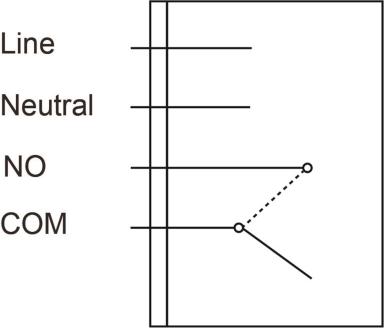
Wire the Relay according to the instructions below.
1. Please turn off the power supply before connection.
2. Remove the top cover and remove the strain relief clamps.
3. Connect the L and N terminals of the power supply to the Line and Neutral terminals of PRLM respectively through the wiring hole.
4. Depending on the device you wish to control via Relay Channel 1, select NO terminal and wire Relay Channel 1 with the device through the wiring hole to establish Normal Open connection with device.
5. In the same way as step 4, connect Relay Channel 2/3 to other wired devices.
6. After completing the wiring, replace the strain relief clamps and the top cover. Turn on the power supply to power on the Relay Switch.
## **Features**
### **Adding Device (Inclusion)**
1. Connect the power input to the Relay Switch according to Installation instruction above and power up the Relay Switch.
2. Put the Z-Wave gateway or control panel into Inclusion mode (please refer to the Z-Wave gateway or control panel manual).
3. Within 1 second, press the Function Button 3 times.
4. Refer to the operation manual of the Z-Wave gateway or control panel to complete the adding process.
If the device has already been added (included) into another Z-Wave Gateway/Control Panel, or if the device is unable to be added into the current Z-Wave Gateway/Control Panel, try removing it first (see Removing Device).
### **Removing Device (Exclusion)**
The device must be removed from existing Z-Wave network before being added into another.
#### Exclusion Mode
1. Put the Z-Wave gateway or control panel into Exclusion mode (please refer to the Z-Wave gateway or control panel manual).
2. Within 1 second, press the Function Button 3 times and the device will be removed from the Z-Wave network.
#### Factory reset
Factory resetting the device will restore it to factory default settings (i.e. not included into any Z-Wave network). Please only use this procedure if the Z-Wave gateway or control panel is lost or otherwise inoperable.
Press and hold the Function Button of the device for 10 seconds to factory reset.
### **Range Test**
To test whether the device is able to communicate with the Z-Wave gateway or control panel:
1. Put the gateway/panel into range test mode (Walk Test).
2. Press the Function Button on the device
3. The gateway/panel should display if the device is within the operation range (please refer to the operation manual of the gateway/panel).
## **Mounting**
1. After you have finished the range test, and you are satisfied that the device is able to communicate with the Z-Wave gateway in the chosen location, proceed to mounting.
2. Disconnect the main power supply.
3. Loosen the bottom fixing screw and remove the top cover of the Relay Switch. Use the holes on the base to mark mounting location on the wall.
4. Drill holes into marked location and insert wall plugs if required, screw the base onto the mounting location.
5. Replace the top cover and tighten the bottom fixing screw.

## **Operation**
### **Relay Control**
* After the Relay Switch has successfully joined a Z-Wave network, the gateway/control panel can remotely control the Relay Channel 1/2/3 to turn On/Off. Please refer to your Z-Wave gateway/control panel for detail.
* The user can also manually press the Switch Button 1/2/3 to switch ON/OFF the Relay Channel 1/2/3.
### **Z-Wave Information**
**Generic Device Class :** GENERIC\_TYPE\_SWITCH\_BINARY
**Specific Device Class :** SPECIFIC\_TYPE\_POWER\_SWITCH\_BINARY
**Role Type :** Always On Slave (AOS)
**Supported security keys :** S2\_UNAUTHENTICATION
**Library :** Enhanced 232 slave
**Endpoint 1 device type :** generic type switch binary and specific type On/off power switch
**Endpoint 1 device type :** generic type switch binary and specific type On/off power switch
**Endpoint 1 device type :** generic type switch binary and specific type On/off power switch
#### **Command Class Support/Control**
**Announced Command Classes in NIF**
ZWave Plus Info CC
Transport Service CC
Manufacturer Specific CC, V2 (S2)
Device Reset Locally CC (S2)
Security\_2 CC
Powerlevel CC (S2)
Version CC, V2 (S2)
Association CC, V2 (S2)
Multi Channel Association CC, V3 (S2)
Association Group Information CC (S2)
Multil Channel CC (S2)
Supervision CC
Firmware Update Md CC, V4 (S2)
Switch Binary (S2)
**Endpoints 123 implements the following command classes**
ZWave Plus Info CC
Security\_2 CC
Association CC, V2 (S2)
Multi Channel Association CC, V3 (S2)
Association Group Information CC (S2)
Supervision CC
Switch Binary (S2)
**Basic Command Class mapping : Binary Switch CC for endpoint 1 & 2 & 3.**
#### **Z-Wave’s Groups (Association Command Class Version 2)**
---
# Agent Instructions: Querying This Documentation
If you need additional information that is not directly available in this page, you can query the documentation dynamically by asking a question.
Perform an HTTP GET request on the current page URL with the `ask` query parameter:
```
GET https://vesta-guide.gitbook.io/vesta-guide/vesta-170.md?ask=
```
The question should be specific, self-contained, and written in natural language.
The response will contain a direct answer to the question and relevant excerpts and sources from the documentation.
Use this mechanism when the answer is not explicitly present in the current page, you need clarification or additional context, or you want to retrieve related documentation sections.


