> For the complete documentation index, see [llms.txt](https://vesta-guide.gitbook.io/vesta-guide/llms.txt). Markdown versions of documentation pages are available by appending `.md` to page URLs; this page is available as [Markdown](https://vesta-guide.gitbook.io/vesta-guide/polish-pl/vesta-156n.md).

# VESTA-156N

Podręcznik konfiguracji VESTA-156N

<figure><img src="/files/e3c408a0ad04464d6c820929cd450e05d8f79f14" alt=""><figcaption></figcaption></figure>

## PRZEDE WSZYSTKIM:

### • Podłącz akumulator modułu I/O

![](/files/328fa0196150b6b69de6e105040cf50b89142d06)

{% hint style="danger" %}
UWAGA:

### Podłącz generator dymu do zacisków „smoke” dopiero PO przeprowadzeniu testów działania.

{% endhint %}

## Nauczanie modułu I/O na centrali

1. Aktywuj funkcję nauczania na centrali (szczegóły w instrukcji centrali)

![Dodaj urządzenie](/files/fabef09194869e94458197f255a2f548da8e6692)

![Wybierz Inne](/files/0e41012273a8f2173cb9b0bf48383592eba19ea6)

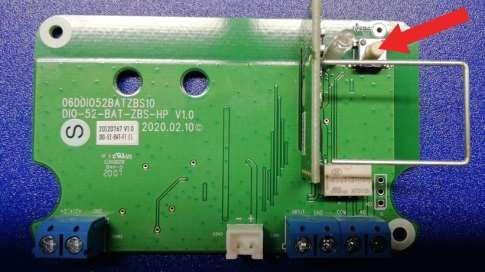
2. Naciśnij przycisk na module I/O zainstalowanym wewnątrz VESTA-156

<figure><img src="/files/c6f3dd606e2aa4f59c595d18008144e5e9762636" alt=""><figcaption></figcaption></figure>

3. Wybierz wykryte urządzenie i naciśnij OK

![](/files/721e66572469fb300f9329db58afe87412ca1284)

4. Przypisz odpowiedni obszar do urządzenia wyjściowego (DO) oraz wybierz numer strefy i nazwę urządzenia: AKTYWACJA DYMÓW

![](/files/94c28379e3958eb85be37c40792984b1ef57546f)

{% hint style="warning" %}
Uwaga: Moduł wyjściowy (DO) musi być ustawiony jako „Oddzielne urządzenia”
{% endhint %}

5. Przypisz do (DI) ten sam obszar co do urządzenia wyjściowego (DO) i wybierz numer strefy oraz nazwę urządzenia: SABOTAŻ DYMÓW.

![](/files/7c06f810599abf99bc4554cc13a66635116a4c86)

6. Ustaw moduł wejściowy jako 24H Alarm Włamania

## Zasada aktywacji konfiguracji

W menu „automatyzacja reguła” utwórz nową regułę jak wskazano poniżej:

![](/files/638b03b5dab3766b251d9a83c3eff74135f343ca)

## Konfiguracja podwójnej zgodności

W ustawieniach urządzenia ustaw co najmniej 2 urządzenia z atrybutem „Cross zone”, aby aktywować generator dymu TYLKO w przypadku aktywacji obu urządzeń w programowalnym czasie, co pozwoli uniknąć nieprawidłowych aktywacji.

Przykład programowania Cross Zone:

![Strefa PIRCAM ](/files/a9b704cf59ef54fc8723d9bfb0d935a95b373ec3)

![Strefa Kontaktu Magnetycznego](/files/5ca06406efa08f3e17747d9df66a81129bfd7eac)

W menu „Bezpieczeństwo” ustaw timer dla stref krzyżowych na 1 minutę lub więcej (czas, w którym obie strefy muszą zostać aktywowane, aby uruchomić generator dymu)

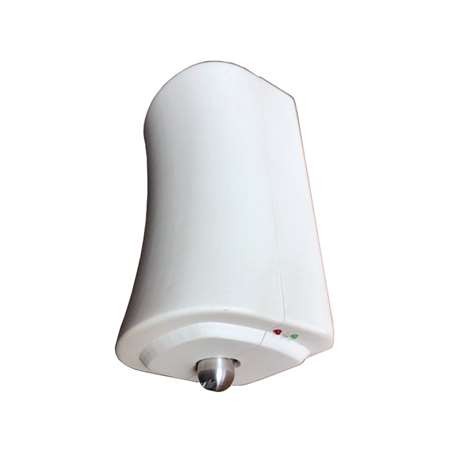
![](/files/081b1332cb2f5048a5dddcdfb837d41de05a9328)


---

# Agent Instructions
This documentation is published with GitBook. GitBook is the documentation platform designed so that both humans and AI agents can read, navigate, and reason over technical content effectively. Learn more at gitbook.com.

## Querying This Documentation
If you need additional information that is not directly available in this page, you can query the documentation dynamically by asking a question.

Perform an HTTP GET request on the current page URL with the `ask` query parameter, and the optional `goal` query parameter:

```
GET https://vesta-guide.gitbook.io/vesta-guide/polish-pl/vesta-156n.md?ask=<question>&goal=<endgoal>
```

`ask` is the immediate question: it should be specific, self-contained, and written in natural language.
`goal` is optional and describes the broader end goal you are ultimately trying to accomplish on behalf of the user. GitBook uses it to tailor the answer towards what is most useful for that goal.

The response will contain a direct answer to the question and relevant excerpts and sources from the documentation.

Use this mechanism when the answer is not explicitly present in the current page, you need clarification or additional context, or you want to retrieve related documentation sections.